Accruent Lucernex 26.05 Release Notes
We're delivering this automatic upgrade to these environments:
-
Dedicated TRAIN: April 22, 2026
-
UAT (TRAIN): April 24, 2026
-
Production: May 8, 2026
The upgrade includes:
-
Data Connect: Deliver Lucernex DataMart exports to Snowflake for reporting.
-
Import and reconcile a rent invoice: Improved page layouts and dialogs to make it easier to import, analyze, review, and reconcile a landlord invoice.
-
Database schema changes: New field added for improvements and issues fixed.
-
Improvements and issues fixed.
Data Connect
Purchase our Data Connect managed service to deliver Lucernex DataMart exports to Snowflake in a format designed for reporting and analytics. Review our introduction to Data Connect.
Import and reconcile a rent invoice
LUC-18757, LUC-19475
We improved the layout of pages and dialogs to make it easier to import, analyze, review, and reconcile a landlord invoice. This helps you manage expense mappings, one-time payments, and retro payments more efficiently, building on the functionality we introduced in the 26.03 release notes.
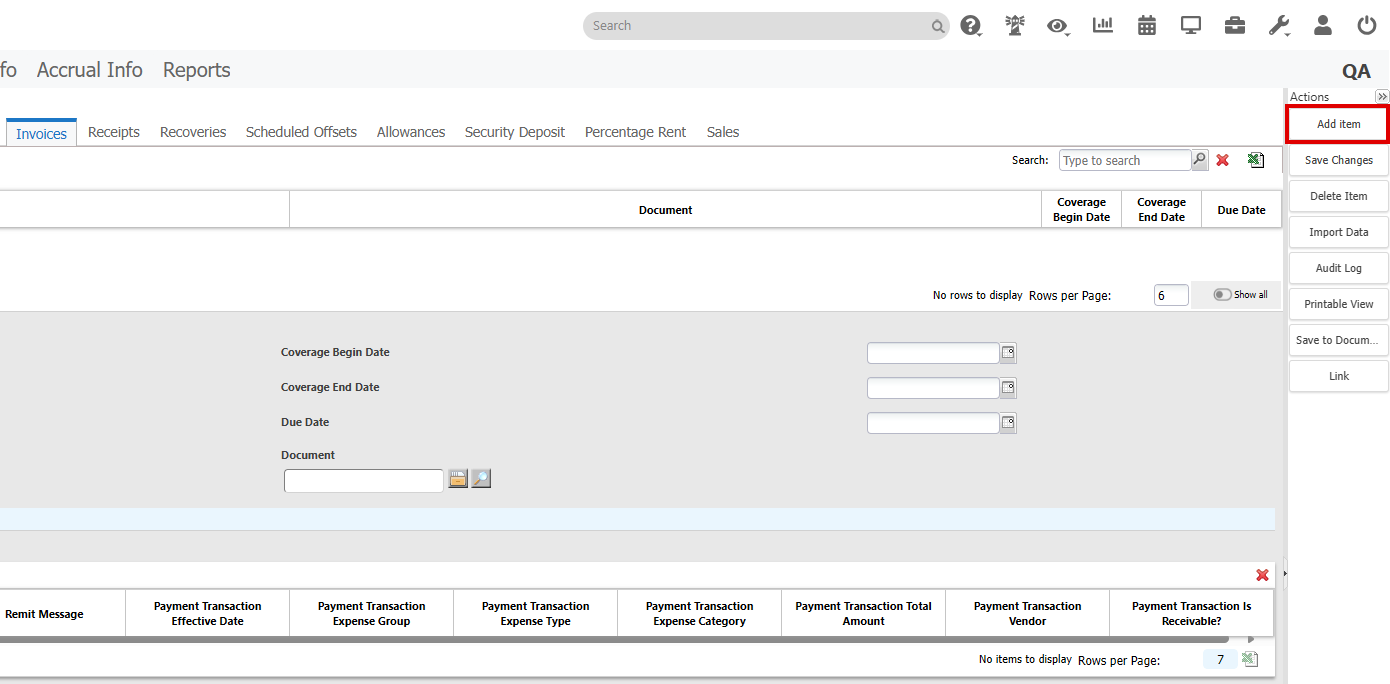
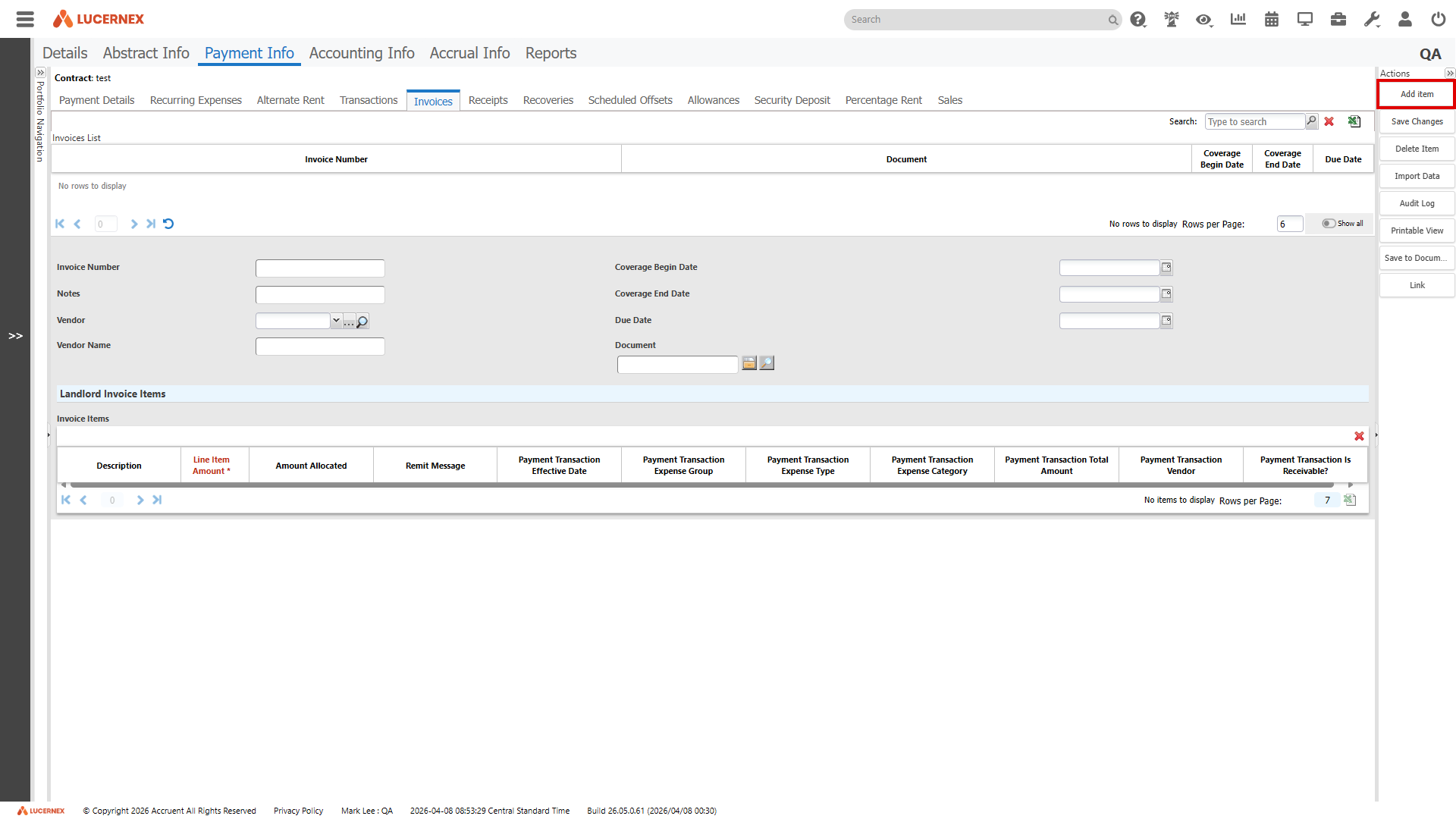
Open the dialog that enables you to start the import and reconcile a rent invoice process from the Invoices page using the new Add item option. This opens the same dialog that opens when you select Import Invoice on the Transactions page.
Analyze Invoice Document
We reorganized the Analyze Invoice Document tab on the Invoice Review dialog to reduce scrolling and make key details easier to find.
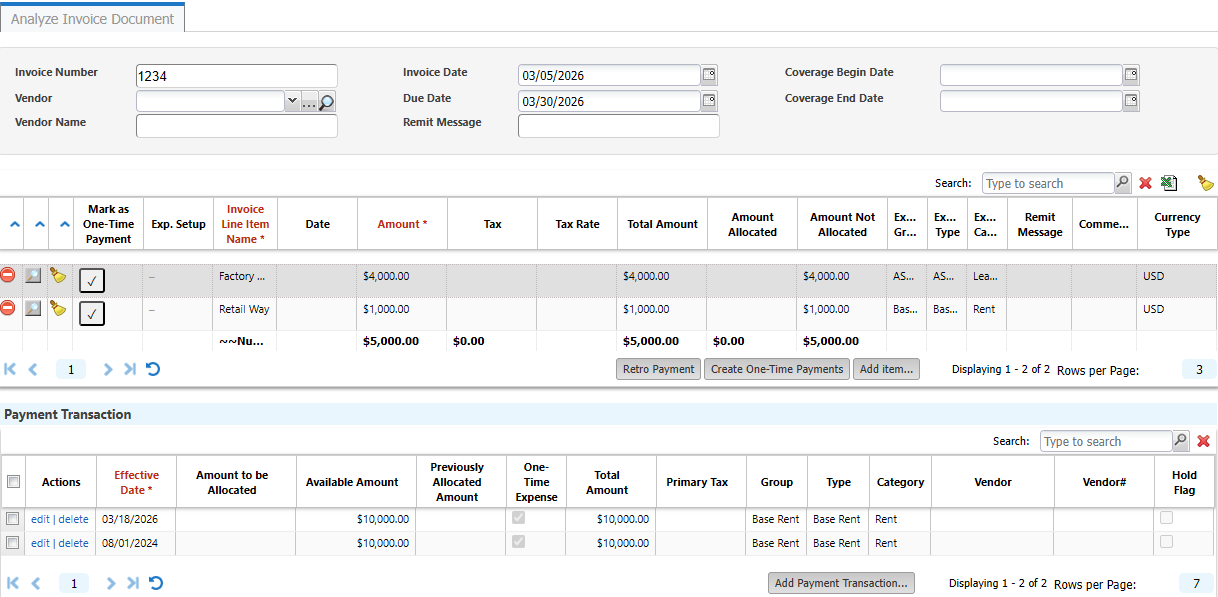
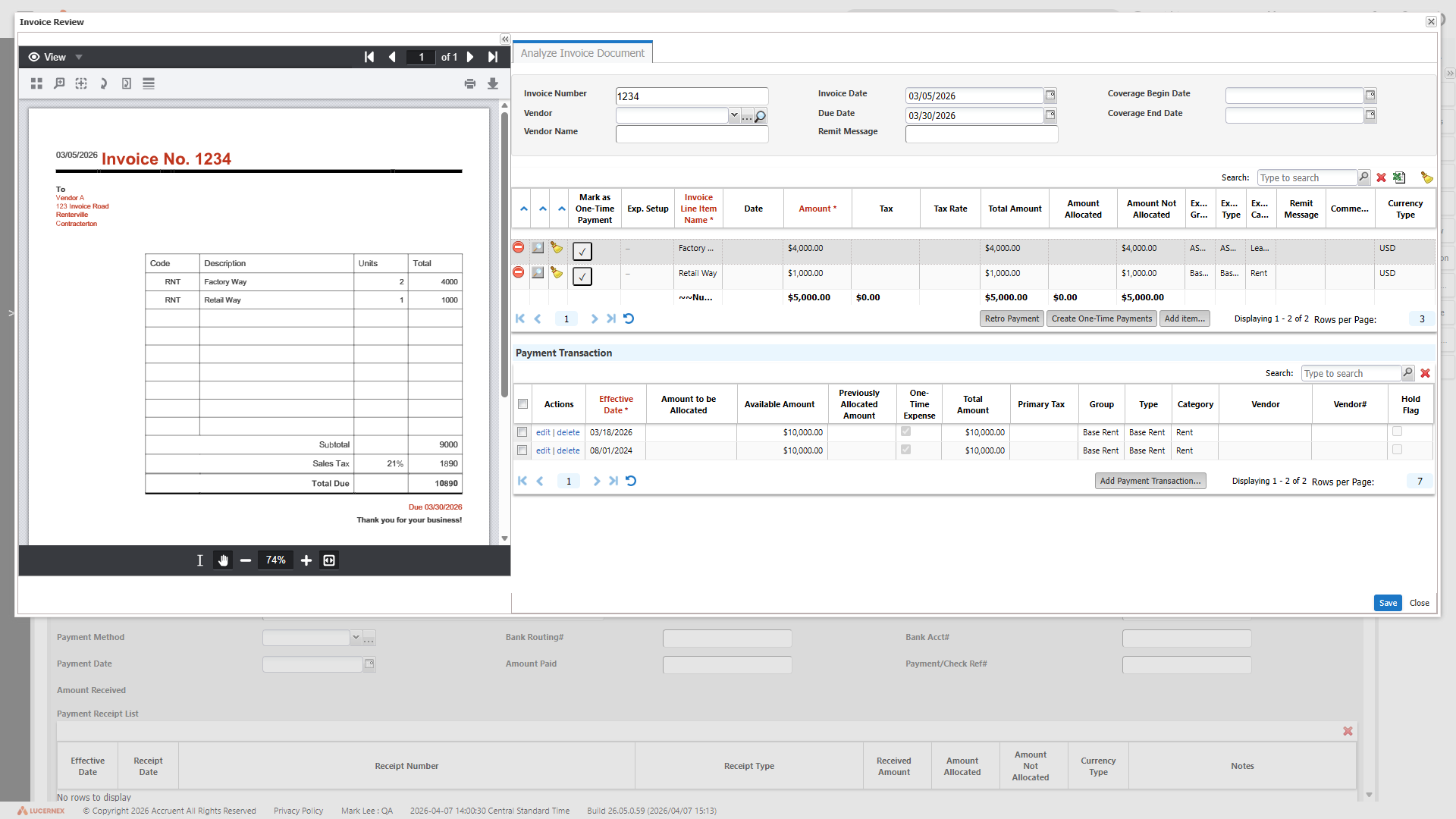
If the imported landlord invoice has a Reference Number and no Invoice Number, Invoice Number on the Analyze Invoice Document tab is now populated with that Reference Number.
Vendor name information is now populated from landlord invoice fields that refer to Make payable to or similar wording. If the invoice specifies a vendor and there is no matching vendor record in Lucernex, that vendor displays in Vendor Name instead of Vendor, and no Employer record is created.
The Invoice Information title bar was removed, and fields repositioned to optimize space. The default number of rows in the Invoice Line Items grid is now 3 to help you focus on the most relevant lines and reduce scrolling.
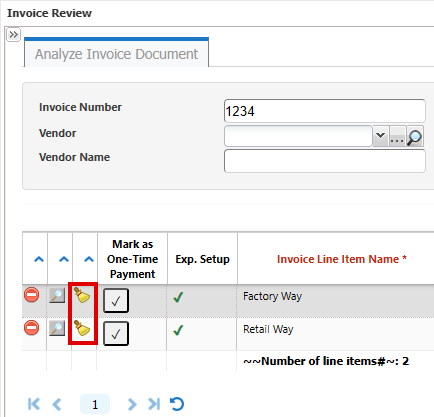
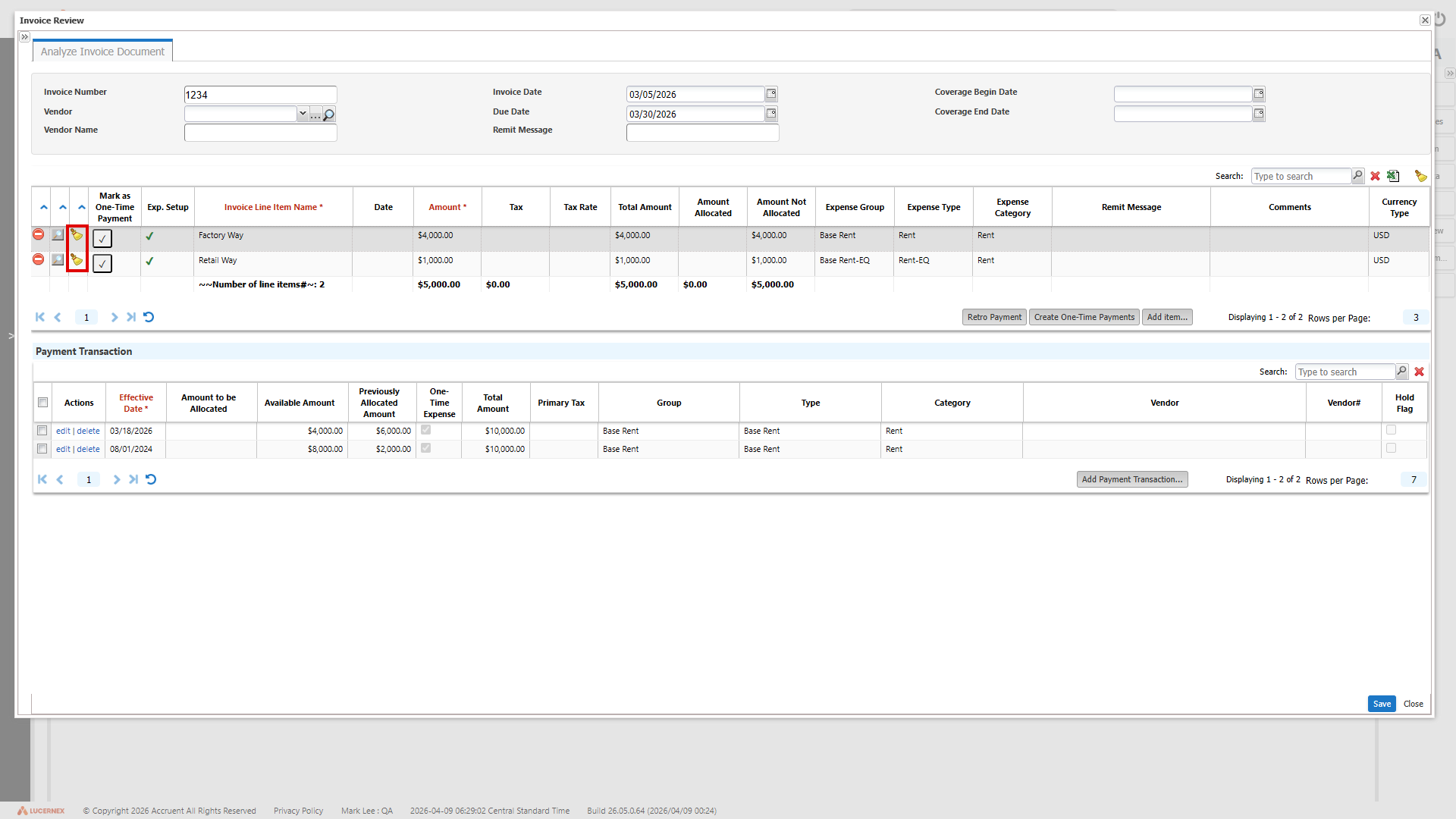
The Clear All Allocations option is now a brush icon in the upper-right corner of the Invoice Line Items grid.

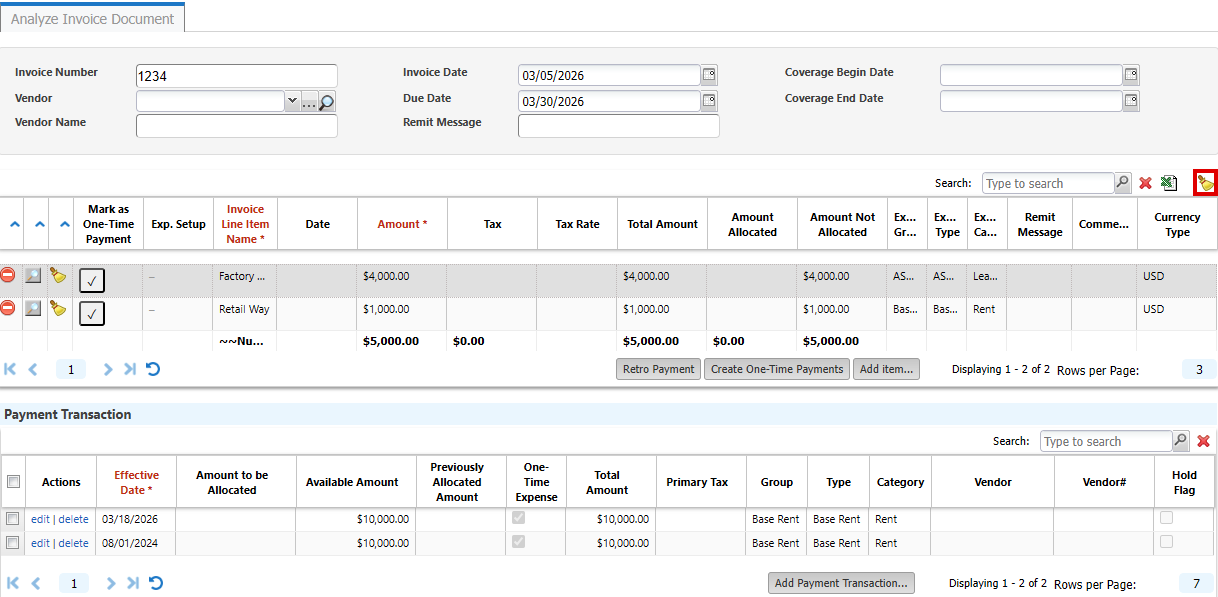
Service Start Date / Service End Date are relabeled to Coverage Begin Date / Coverage End Date.

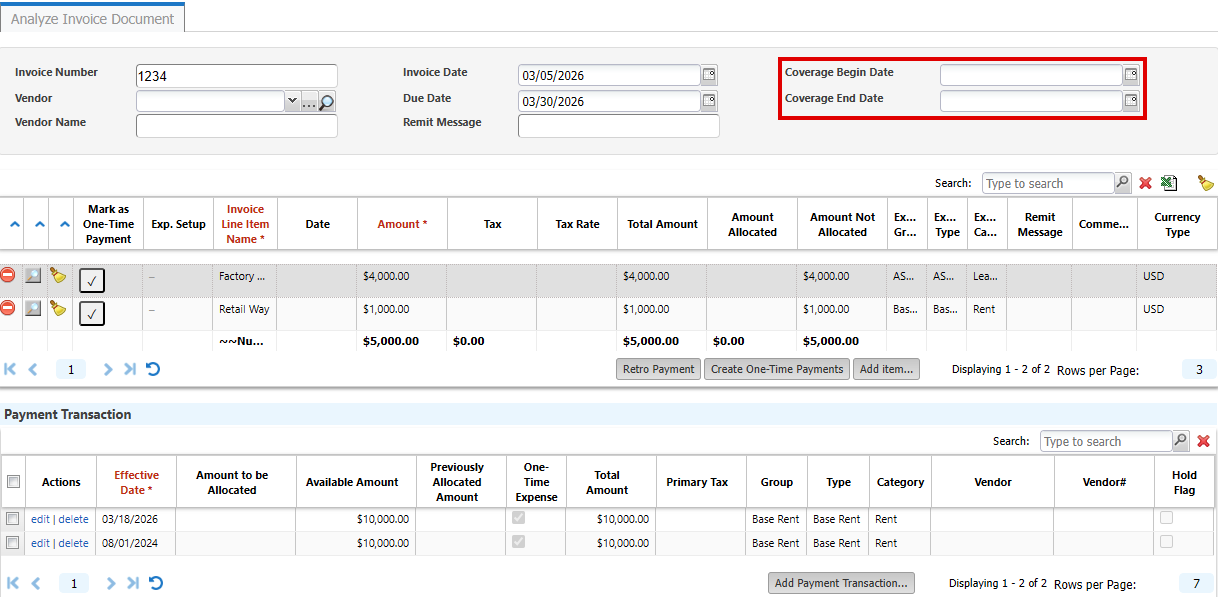
Set expense setup from an invoice line item
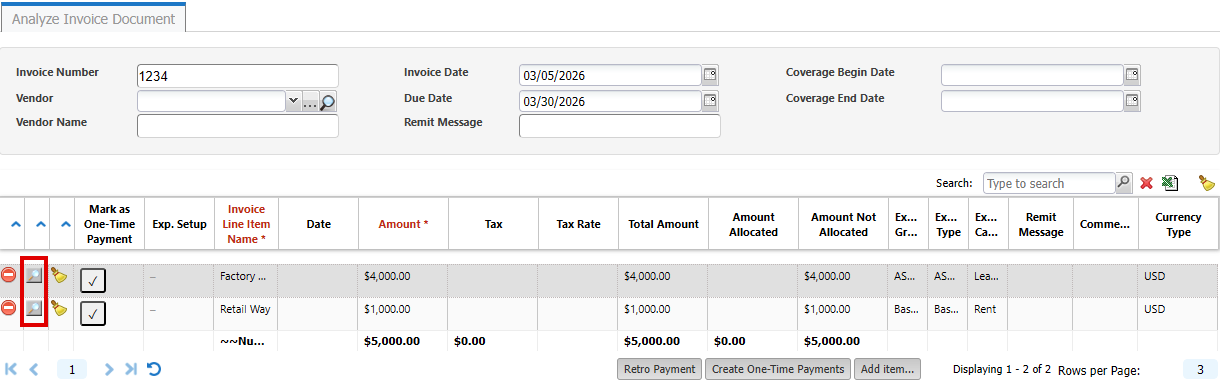
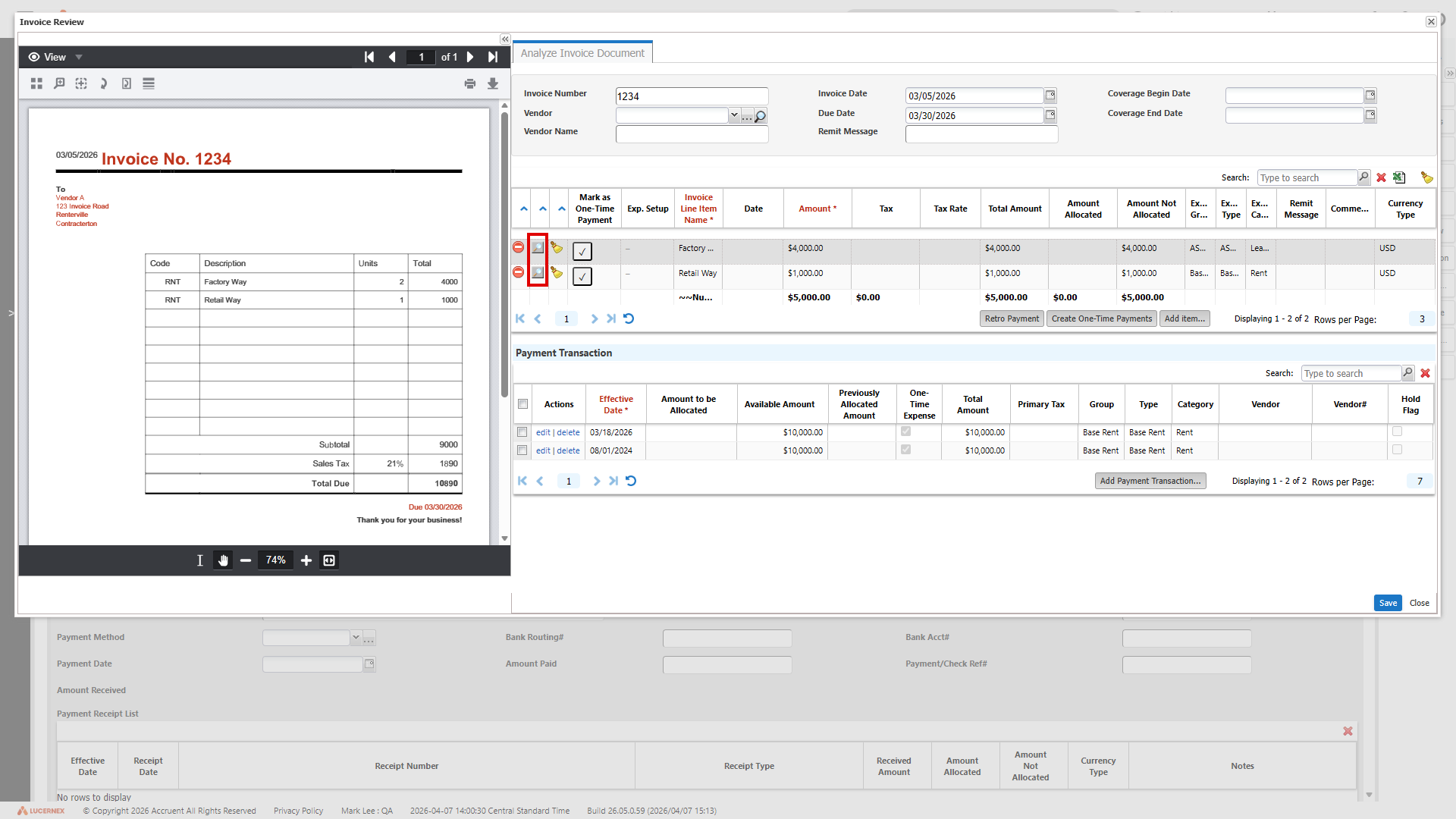
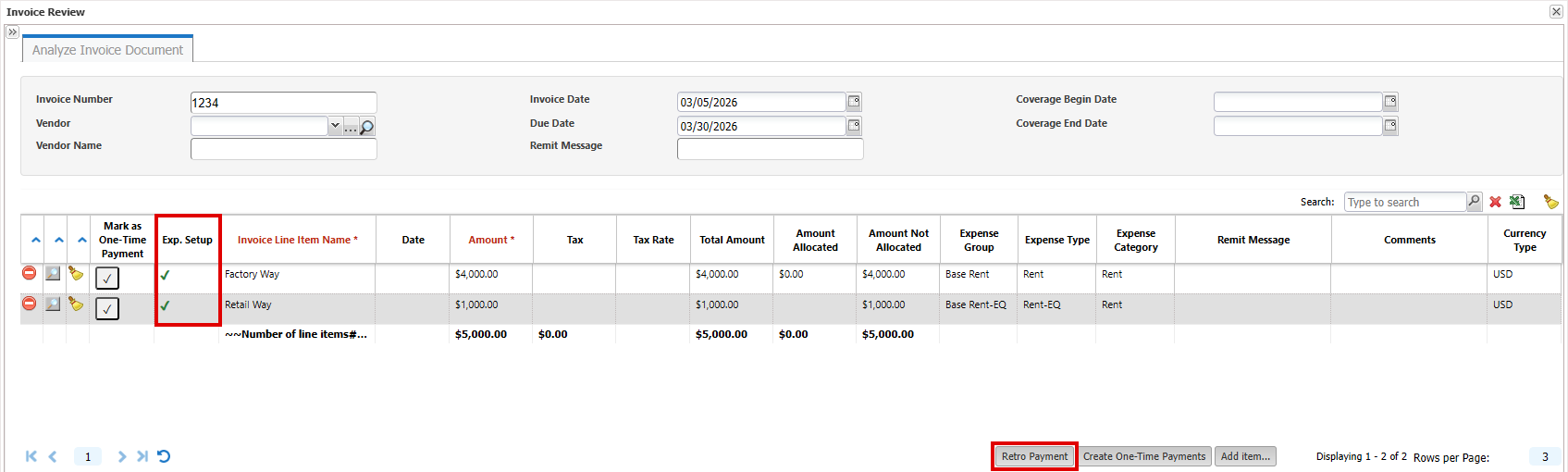
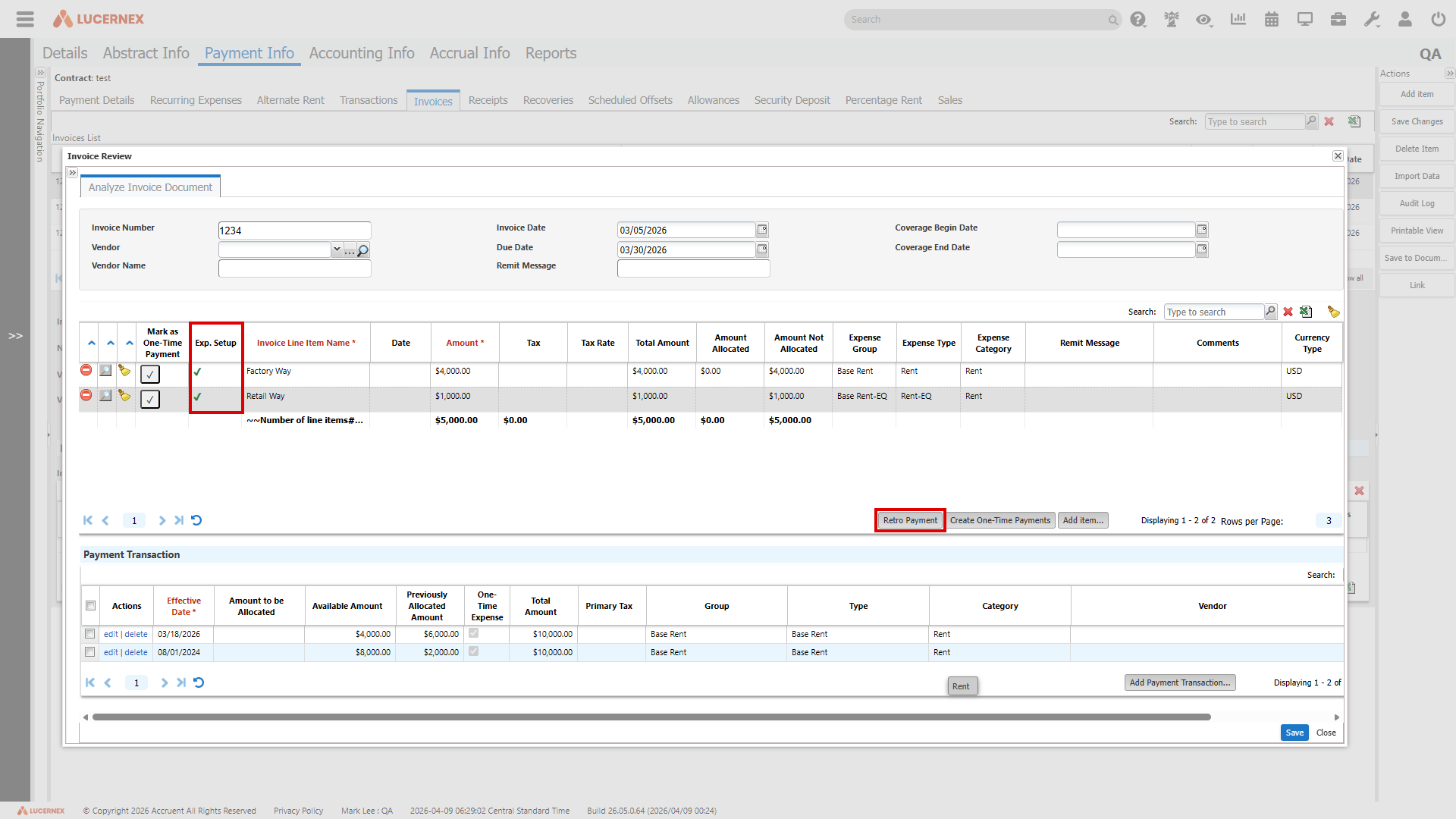
The ExpenseSetupID for each invoice line item is replaced with Exp. Setup, which shows a check mark if a matching expense setup record was found for the invoice line item. This supports retrosepective payments and reduces manual data entry. Assign an expense setup record manually by selecting the magnifying glass next to an invoice line item, making it easier to correct or assign mappings without leaving the dialog.
-
Select the magnifying glass next to the invoice line item.
-
Select the expense setup record, then select Select.
Expense Group, Expense Type, Expense Category, and ExpenseSetupID update with information from that expense setup record.
Clear Expense Group / Type / Category mappings
Select the clear mapping brush icon to quickly remove incorrect mappings for line items before applying the correct expense setup record.
-
Select the clear mapping brush icon for the line item.
-
Select Yes to confirm the action.
Lucernex clears the line item’s Expense Group, Expense Type, and Expense Category values.
Create one-time payment transactions for invoice line items
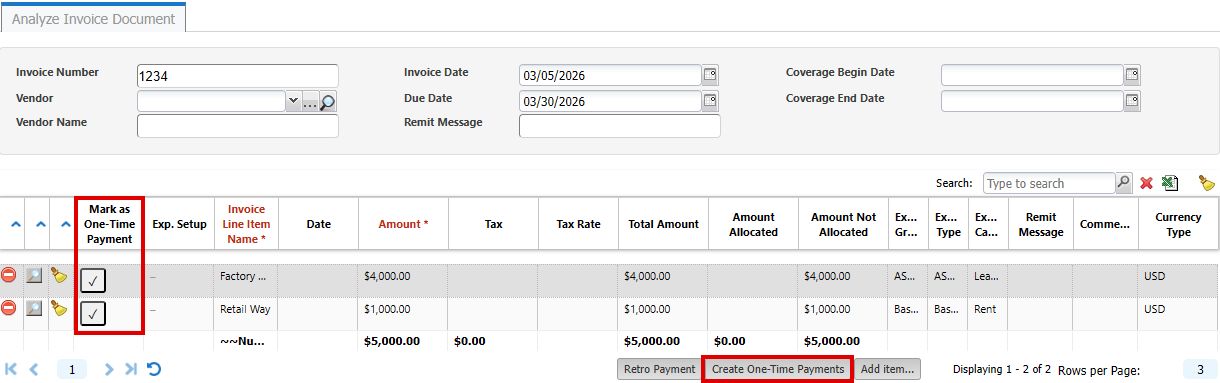
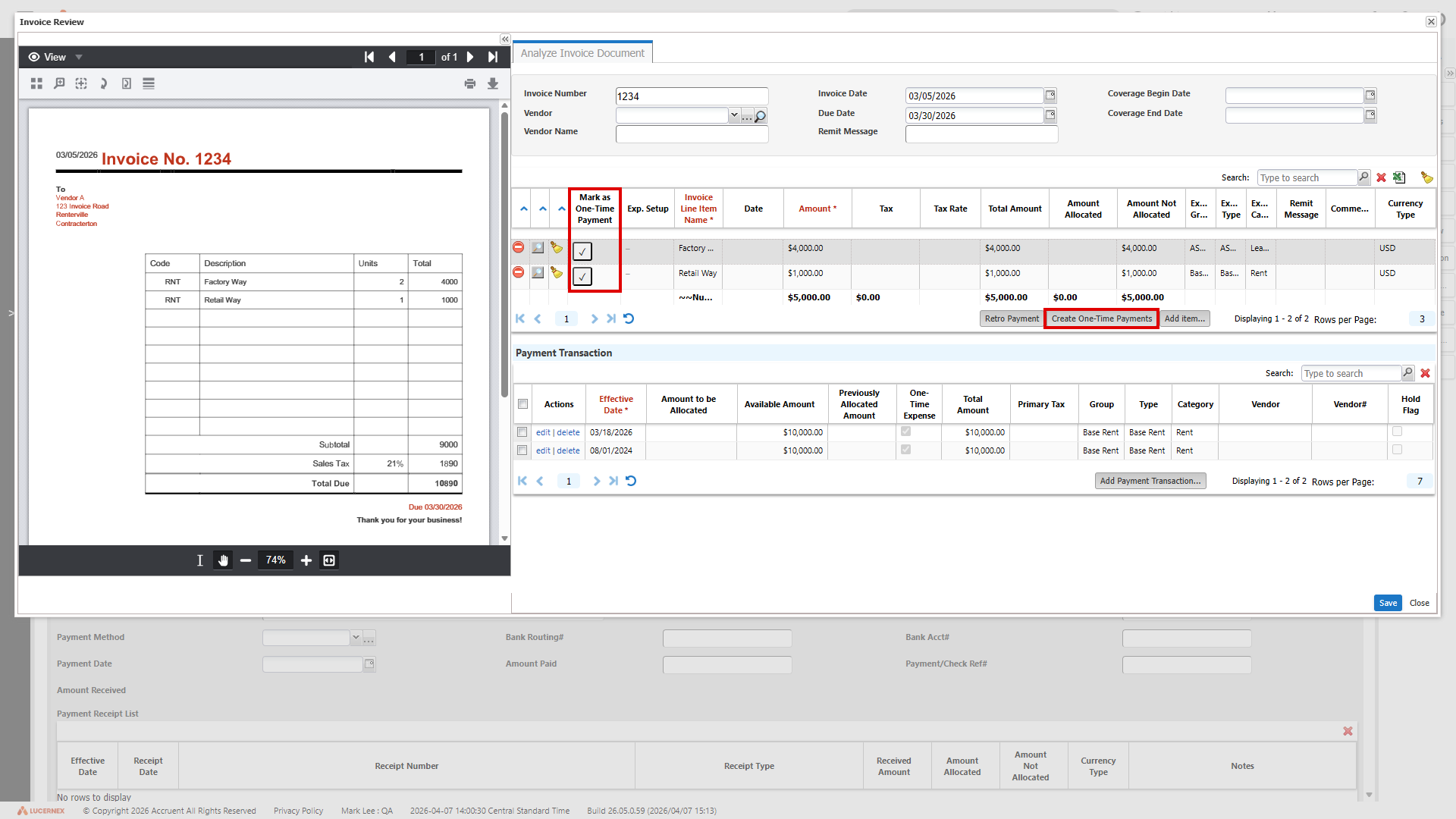
Automate creation of one-time payment transactions based on your invoice review, reducing manual transaction setup. Mark specific invoice line items as one-time payments and create one-time payment transactions from those items.
-
Select the Vendor.
-
Select the check mark icon in the invoice line items to create one-time payment transactions for.
-
Select Create One-Time Payments.
-
Complete the Create Invoice Payments dialog.
-
Select Preview Payments to preview a summary of the changes.
-
Select Create Payment.
New transactions display in the Payment Transaction pane.
Retro payments from invoice line items
Create retroactive payments for backdated or adjustment payments tied to expense setup records associated with invoice line items.
-
If Exp. Setup in the line item does not show a check mark or you need to change the expense setup record associated with that line item:
-
Select the magnifier icon in the line item.
-
Select the expense setup record to associate with the invoice line item, then select Select.
A checkmark displays in the Exp. Setup column for that invoice line item.
-
-
Select Retro Payment.
-
Complete the Retro Payment Setup dialog.
-
Select Preview Payment to preview a summary of the changes.
-
Select Create Payment.
Any resulting new payment transactions display in the Payment Transaction pane.
Import contracts with invoice data
LUC-19416
When you import contract XML data that includes invoices, Lucernex now correctly links them to the contract’s Invoices tab.
If the referenced invoice documents already exist in the environment, Lucernex links them to the contract. If the documents do not exist, the invoice amounts are imported, but no invoice documents are attached. For example, when importing a contract from another environment.
<ContractImport>
  <Contract>
    <ContractNumber>CNTR-TEST-001</ContractNumber>
    <Description>Sample contract for landlord invoice import</Description>
    <StartDate>2026-01-01</StartDate>
    <EndDate>2026-12-31</EndDate>
    <!-- Document section: invoice document is already applied in the system -->
    <Documents>
      <Document>
        <DocumentId>DOC-INV-0001</DocumentId>
        <DocumentType>Invoice</DocumentType>
        <FileName>sample-invoice.pdf</FileName>
        <Version>1</Version>
      </Document>
    </Documents>
    <!-- Landlord invoice section: references existing document, does NOT create it -->
    <LandlordInvoices>
      <LandlordInvoice>
        <InvoiceNumber>INV-0001</InvoiceNumber>
        <InvoiceDate>2026-02-01</InvoiceDate>
        <Amount currency="USD">1000.00</Amount>
        <LandlordTenantIndicator>Landlord</LandlordTenantIndicator>
        <!-- Reference to the pre‑applied invoice document above -->
        <DocumentReference>
          <DocumentId>DOC-INV-0001</DocumentId>
          <Version>1</Version>
        </DocumentReference>
      </LandlordInvoice>
    </LandlordInvoices>
  </Contract>
</ContractImport>
Database schema changes
Benefit from new fields added to the database schema for enhancements in this release. Update your page layouts to display new fields on customized pages.
Look for  in the lower-right corner of the dialog or window to identify customized pages.
View the Data Dictionary for a full list of all fields in your firm that you can use in custom reports, including those added by your organization and those added by this release.
VirtualPRAccrualPeriod
We added this field to support correct chronological sorting of percentage rent accrual periods for LUC-16312.
|
Field Name |
Type |
UI Label |
Description |
|---|---|---|---|
|
FiscalPeriodNameSort |
Date |
System-generated date-based sort key for fiscal period/year. Use this field to sort percent rent accrual periods in true chronological order. This prevents incorrect text-based sorting such as 1/2026 appearing before 10/2025. This is intended for sorting in custom reports and exports and does not replace the displayed Period value. |
Improvements and issues fixed
|
Summary |
Reference # Case |
|
|---|---|---|
|
Transactions |
Lucernex now reliably sets the correct currency on reconciliation transactions based on your contract and expense configuration, improving data consistency for reporting and downstream integrations. |
LUC-18918 |
|
Dashboard Reports |
Dashboard reports now keep geographic and personal filters aligned so users only see data within their allowed regions when they apply, change, or clear filters. This also ensures workflow-related dashboard reports display only the data your users are permitted to access, improving both accuracy and security. |
LUC-19164 |
|
Expense Setup |
The Proration Method label now correctly displays in the Recurring Expenses tab across all applicable layouts and configurations. |
LUC-18818 |
|
Workflow |
Lucernex now evaluates ActionEnabled JavaScript consistently for workflow actions, so Project Final Report step actions display based on the configured rules for each user role, including System Administrators and LX Administrators. |
LUC-18800 |
|
Facility Setup Wizard |
Copying documents from project to facility in the Facility Setup Wizard now works as expected. The Copy Selected Documents option is always available for Opening and Capital Projects, so selected documents are carried into the facility while Skip cleanly moves you forward without copying. |
LUC-18543 |
|
RunReport API |
The RunReport API now correctly returns results when KeyDate.ModifiedDate includes non‑midnight timestamps. For example, this call now returns the expected records instead of an empty result: /rest/businessObject/RunReport/details?fiql=ReportID==Some_Report_API;KeyDate.ModifiedDate=ge=2026-02-27T00:00:01 |
LUC-17335 |
|
Summary page dropdown fields |
Dropdown fields on summary pages now correctly show the text values you configure, such as Yes or No instead of an internal ID number when no value is set yet. This makes new dropdown fields easier to read and prevents confusing numeric values from appearing across your projects. |
LUC-17286 |
|
Percentage Rent |
The Percentage Rent Accrual Schedule now correctly sorts the Period column in chronological order. This makes it easier to review accruals over time and quickly confirm that your percentage rent calculations align with your reporting periods. To support this update, we added the database field, Fiscal Period/Year Sort, which provides a date-based sort value to prevent text-based sorting issues. |
|
|
Workflow |
When reassigning a workflow, Lucernex now correctly respects notification layout access and required-notifiee rules. Authorized users can see and update notifiees during reassignment, reassign them to other users, and rely on consistent validation when a workflow template requires notifiees. This keeps workflows moving smoothly and aligns notification behavior with the approver layout. |
LUC-15710 |
|
Percentage Rent |
When you edit an existing percentage rent record on the Payment Details page, Breakpoint Type no longer defaults to Artificial. It now shows the saved value: Artificial, Natural, or Count Based Rate. |
LUC-18069 |
|
Reports |
Math fields in reports now correctly calculate values from their own JavaScript sources. As a result, financial reports show accurate and distinct results for each formula both on screen and in Excel exports. |
LUC-19070 |
|
Custom lists |
When you filter a custom list by a Yes/No field, the filter now returns the correct rows. Selecting Yes or No consistently shows only matching records, including on sites that use localized (non-English) labels. |
LUC-11835 |
|
Members |
When editing a Person record and you select three dots (…) in Job Function, the list in the dialog no longer displays the Lx Administrator job function for non-admin users. Lx Administrator is still available for system administrators. This helps prevent unintended permission elevation while keeping full control for authorized admins. |
LUC-11761 |
|
Members |
Lucernex now correctly enforces security when assigning Lx Administrator access. Non-admin users can no longer create employer members with the Lx Administrator job title on screen or by importing users using a spreadsheet. This helps ensure elevated administrator permissions are only granted using approved, secure workflows, while non-admin users can continue to create members with allowed job titles without interruption. |
LUC-11757 |
|
Save to documents in schedule |
When you select Save to Documents in a schedule or download it, the schedule now shows all columns, rows, dates, and comments clearly without overlapping. Date values are no longer cut off in the Schedule view, the saved document preview, or the downloaded HTML file. The Save to Documents preview now uses the full available space, so you can review schedules without extra scrollbars or missing rows. This helps you review and share complete schedule information with confidence. |
LUC-11074 |
|
API |
Lucernex now correctly rejects any JSON Web Token (JWT) that has been altered, including changes at the end of the token. Valid tokens are accepted, expired tokens return an expiration error, and any addition, removal, or corruption of characters now returns an error that the token is not valid. This improves the security and reliability of API authentication. |
LUC-11633 |
|
Summary pages |
Reliably add, edit, delete, and re‑parent page layouts under Capital Project > Details > Summary without encountering database errors, even when layouts already exist. |
LUC-19655 |